.png?width=3500&height=600&name=Hubspot%20Headers%20%26%20Footers%20(5).png)
Step 1: Highlight the Text
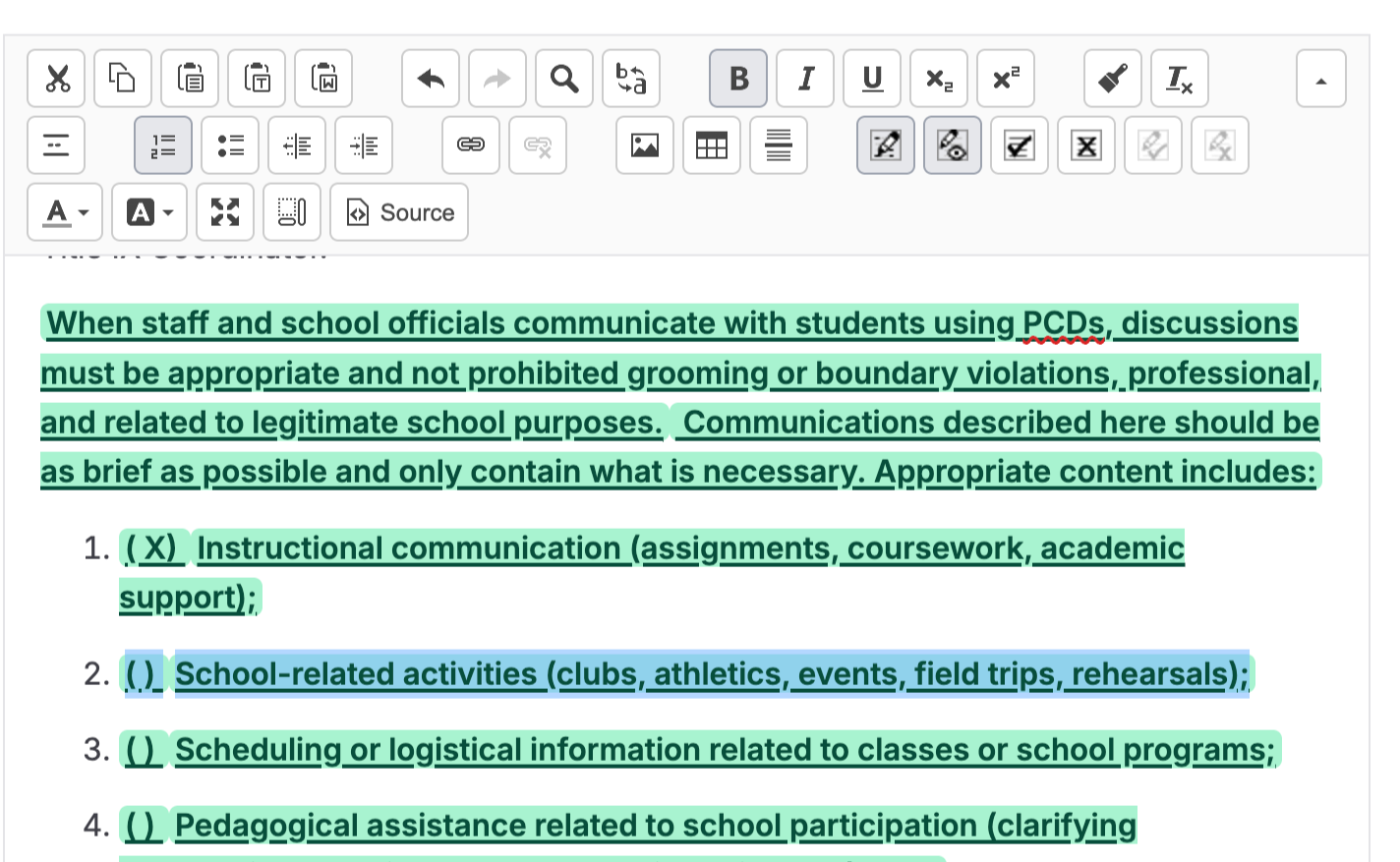
- Highlight the specific text or option that you want to show as a strikeout.
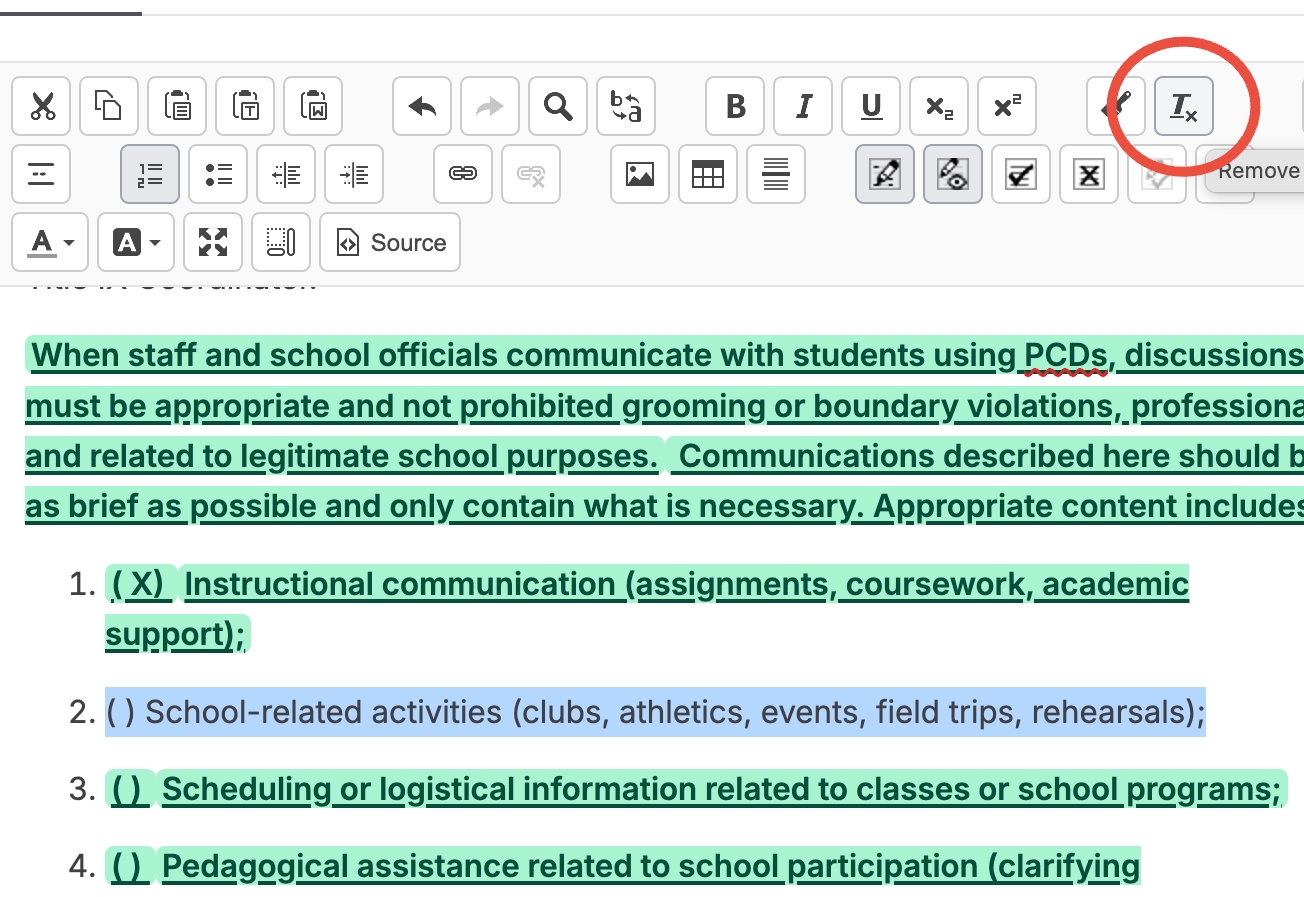
- Click the Tx button (also known as the remove format button).
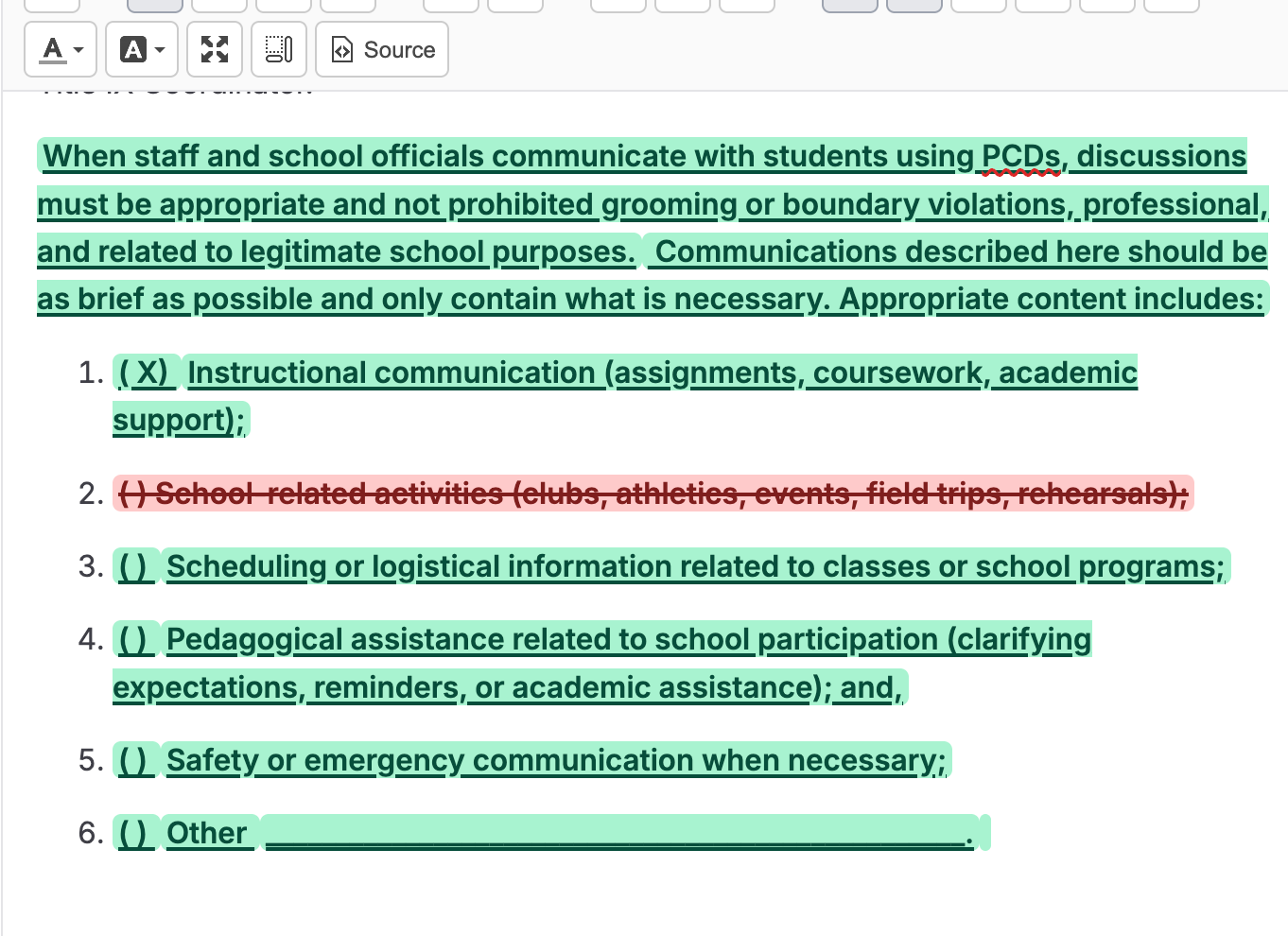
- With Track Changes still enabled press backspace or delete to remove the highlighted text, which will now correctly display as a strike-through.
Contact support@neola.com for any assistance with modifying Track Changes